Projects & Ideas · Field note
How I Built My Second Brain with Obsidian
!(https://miro.medium.com/v2/resize:fit:1400/format:webp/13iVFsAaIcSRKPF6orx9pg.png)
A working note — rougher than the essays, kept here for reference.

Obsidian logo
Ideas come fast, and distractions come even faster. Over the years, I tried dozens of tools to stay organized. To-do apps, Google Docs, Notion. They worked to some extent, but nothing ever really stuck.
Then I found Obsidian.
Obsidian turned out to be more than just another note-taking app. It became the foundation of my Second Brain — a system where I capture everything from quick thoughts to software architecture diagrams. What I like most is that it adapts to how I think and work, not the other way around.
In this post, I’ll show you how I’ve set it up, why it works so well for me, and how you can start building your own version of a Second Brain.
Why I Chose Obsidian
I used Notion for a while. It’s beautiful and powerful, no doubt about that. But it’s also a closed system. Your notes live in their cloud. Exporting is possible, but messy. And if you stop using Notion, you lose access to the full experience.
Obsidian is different. It runs on plain Markdown files stored on your own device. Your data is yours. You can open your notes in any text editor, back them up however you want, and even version control them. It’s lightweight, fast, and completely free to use.
One of the only paid features is syncing across devices. But if you’re comfortable with Git, there’s a powerful and free alternative.
A Free Way to Sync Across Devices (and Keep History Too)
You don’t need to pay for Obsidian Sync if you’re comfortable setting things up yourself. I use the Obsidian Git plugin, which automatically commits changes in my vault to a private GitHub repository.
This gives me:
- Free syncing across devices via Git
- Full version history of all my notes
- Control over my own backup strategy
It takes a bit of setup, but once it’s running, it works reliably in the background. No subscription required.
The Second Brain Concept
The idea of a Second Brain comes from the book Building a Second Brain by Tiago Forte. The core concept is simple: take ideas and knowledge out of your head and put them into a trusted external system.
For me, Obsidian became that system. I needed a place to:
- Capture thoughts, todos, and ideas
- Track work and personal projects
- Store code snippets and architecture decisions
- Reflect on things I’ve learned
Over time, I shaped my Obsidian setup into something that reflects how I think and work.
Inside My Vault: The Structure
Obsidian uses the term vault for your workspace. Mine is called Second Brain, and here’s how it’s structured:
00. Inbox
A scratchpad for quick notes, ideas, or links. I dump things here and sort them later.
01. Daily Notes
One note per day. I use it to log what I’m working on, track tasks, and reflect on progress. Sometimes it’s a journal, sometimes a todo list.
02. Projects
Each project has its own folder with meeting notes, todos, planning, and references.
03. Code Snippets
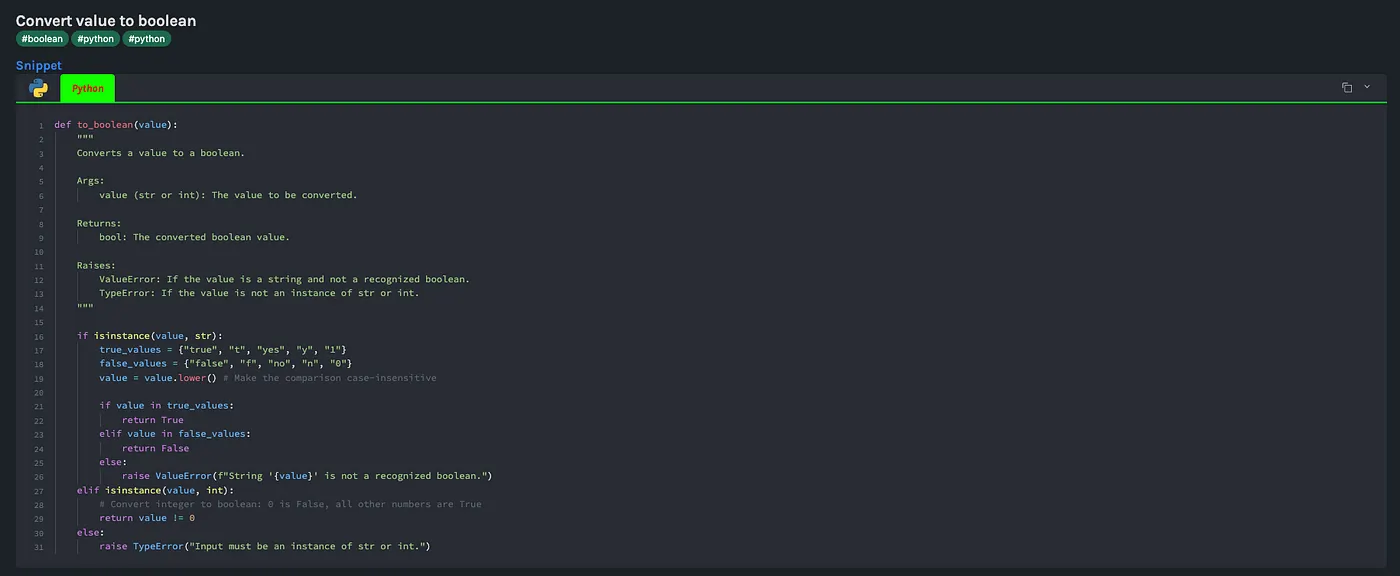
My personal library of code tricks, reusable functions, terminal commands, and Stack Overflow-worthy one-liners.
E.g.: a small function to convert a value to a Boolean in python.
04. Architecture & Design
Notes about software architecture, system diagrams, decisions, and patterns. It helps me track technical reasoning over time.
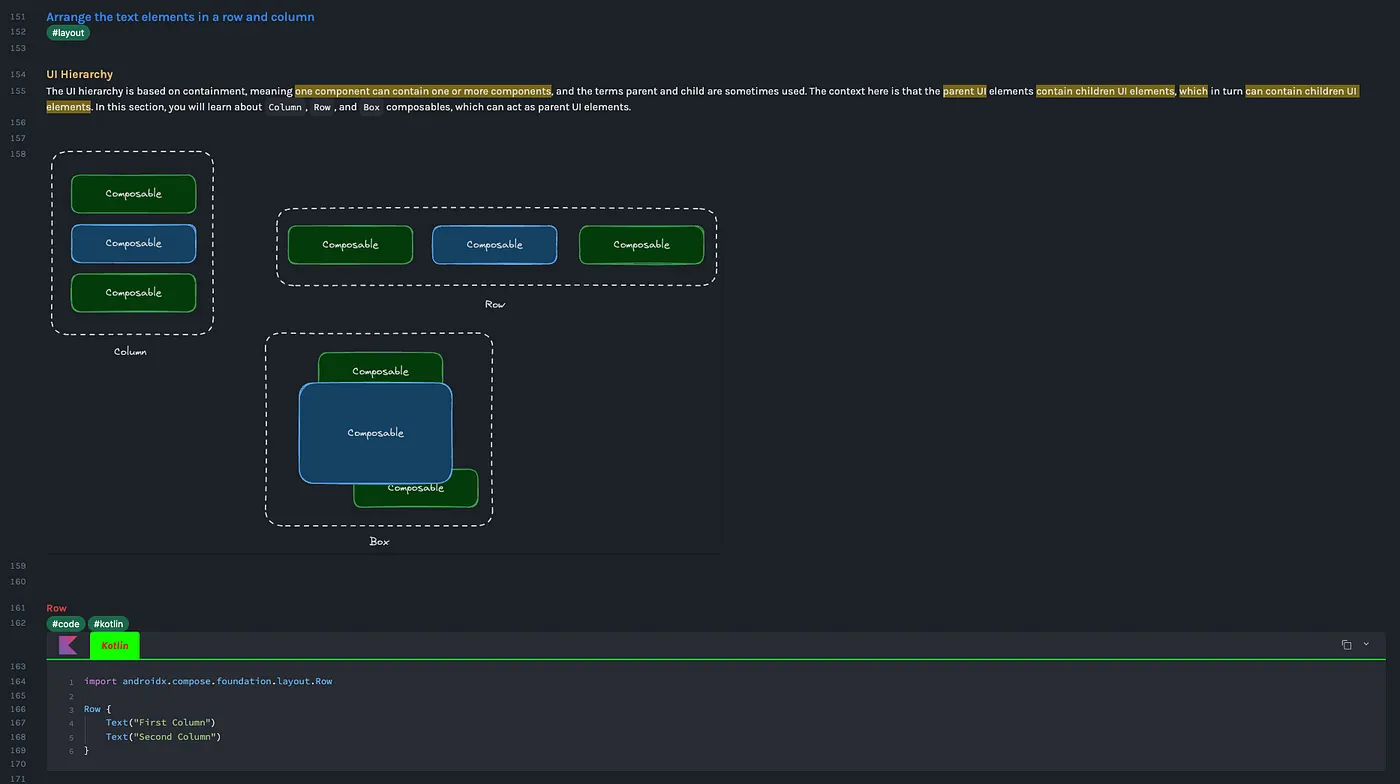
05. Learnings
Lessons from books, courses, articles, and hands-on experience. This is where I review and summarize key takeaways.
Get Kevin T'Syen’s stories in your inbox
Join Medium for free to get updates from this writer.
E.g.: I recently had to onboard myself into learning Kotlin & Compose for Android.
Excalidraw
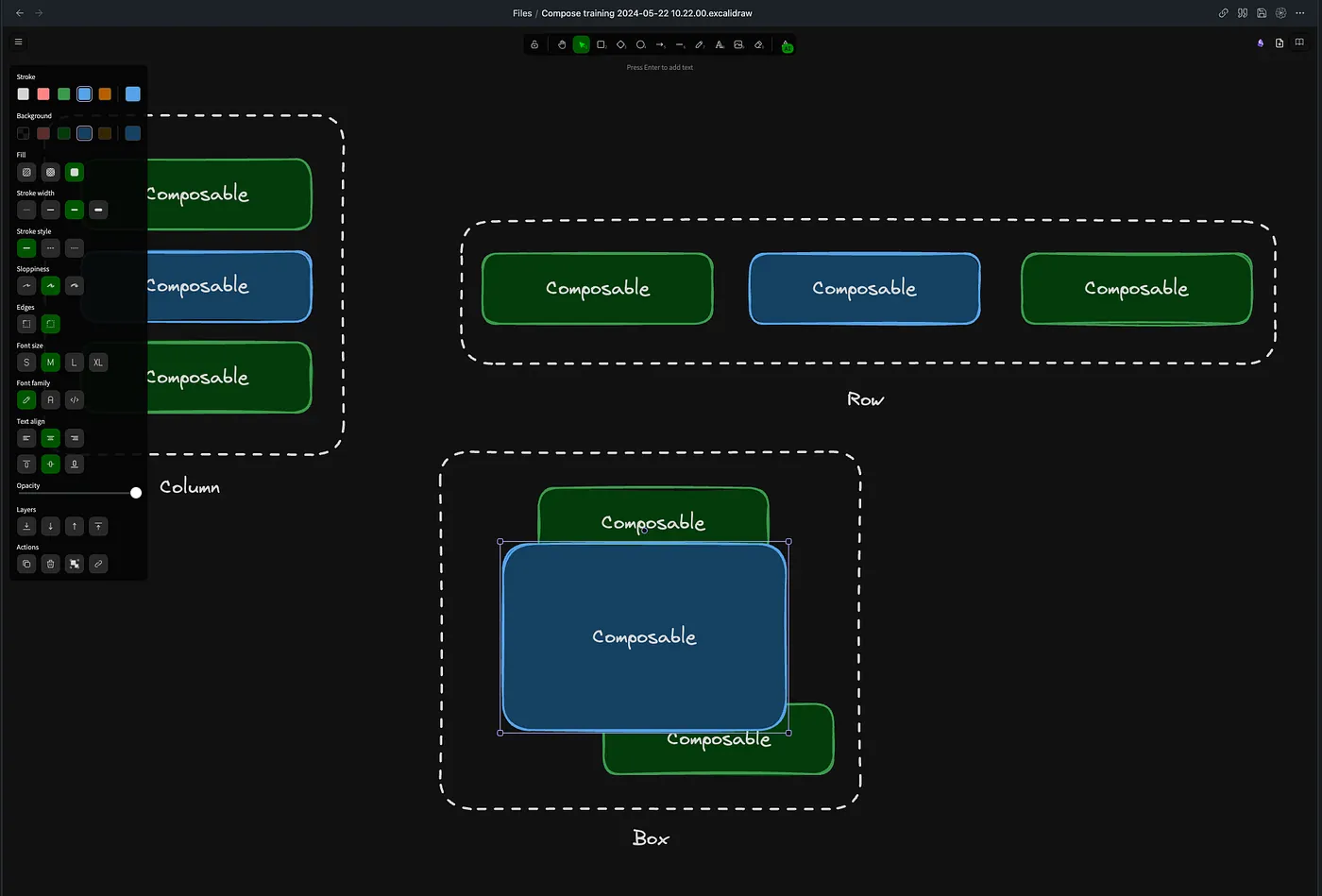
I use the Excalidraw plugin for drawing diagrams, mind maps, and system flows directly inside Obsidian.
The schema from above is acutally done via Excalidraw and embedded within the notes. I can just open de schema by clicking on it in the note itself.
Files
Storage for PDFs, images, and other files referenced in my notes.
Templates
Reusable note formats for daily logs, project kickoffs, retrospectives, and more. This keeps things consistent and fast to start.
The Plugins That Power My Workflow
Obsidian’s plugin ecosystem turns it from a simple note app into a personalized productivity suite. These are the plugins I use the most — and they’ve become essential to how I work:
- Excalidraw
For sketching out system architecture, workflows, and random visual thinking. It’s great to have freeform diagrams embedded right in my notes. - Kanban
Yes, I have my own Kanban board inside Obsidian. Perfect for managing tasks in larger projects without switching tools. - Templater
This plugin lets me quickly create consistent notes using templates. Whether it’s a daily note, meeting note, or bug report — it always starts with the right structure. - Tasks
It adds task management capabilities right into your notes. Think recurring tasks, filters, and due dates — like a full todo app, but within Markdown. - Dataview
This one’s incredibly powerful. It allows you to write custom queries (in JavaScript!) to surface and visualize data from your notes. I use it to summarize open tasks, active projects, and recently added notes.
There are hundreds of other plugins available, but these five are the core of my setup.
My Daily Workflow in Obsidian
Here’s what a typical day looks like with my setup:
- I open the Daily Note and log anything important: tasks, events, priorities, …
- I jot down ideas throughout the day in the Inbox
- If I work on a project, I update notes in its dedicated folder
- I might paste in a useful command or snippet into the Code Snippets section
- At the end of the day, I reflect a bit and sort any stray notes from the Inbox
It’s simple, but it works. And over time, these notes become a powerful reference.
Why Obsidian Replaced Notion for Me
Here’s a quick summary of why I switched:
- Your data stays yours
Obsidian works with local Markdown files. No lock-in, no proprietary format. Notion, on the other hand, keeps your notes in their ecosystem, and exporting is clunky. - Offline-first by design
Obsidian runs fully offline. I can take notes on a plane or in a tunnel. Notion needs an internet connection for most things to work smoothly. - Blazing fast, even at scale
Obsidian handles large vaults without slowing down. Notion can feel sluggish when pages grow or databases get large. - Highly customizable with plugins
Obsidian’s community plugin ecosystem is incredible. You can turn it into anything you need. Notion has some integrations, but they’re limited by comparison. - Flexible syncing options
With Obsidian, I can choose between the paid sync service or roll my own using Git and a private repo. Notion comes with built-in sync, but you’re tied to their cloud. - Powerful version control
Using Obsidian Git, I get full history and backups of my notes for free. Notion offers basic undo, but no true versioning or rollback. - Better suited for developers
Obsidian fits naturally into a developer’s workflow. You can write, link, query, and even diagram without leaving your notes. Notion often feels like it’s trying to be a spreadsheet with blocks.
I still think Notion is great — especially for teams or shared docs. But for personal productivity, Obsidian gives me full control and peace of mind.
Final Thoughts
My Second Brain isn’t perfect, and I don’t aim for it to be. What matters is that it works for me. It’s fast, flexible, and evolves as I do.
If you’re drowning in scattered notes or switching between too many apps, try building your own Second Brain. Start simple. One folder. One note. Let it grow.
Curious about my setup or want to see my templates?
Happy to share. Just reach out.